

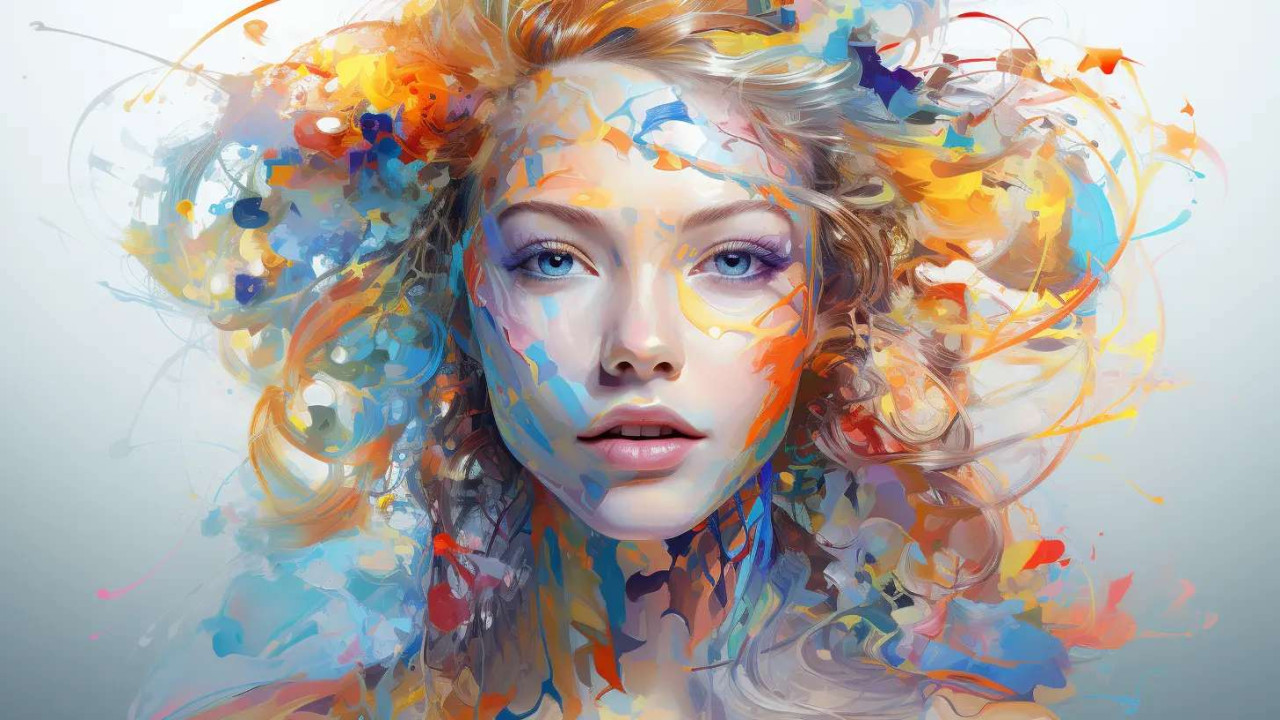
Enhancing AI-Generated Images: Post-Processing Tools and Techniques
AI-generated images have revolutionized the creative landscape, enabling users to create stunning visuals with minimal effort. However, while these images can be impressive out of the box, post-processing can elevate them to new heights. This article explores various tools and techniques for enhancing AI-generated images, allowing you to refine and customize your creations for maximum impact.
Understanding Post-Processing
Post-processing refers to the steps taken after an image is generated to improve its appearance or adjust its features. This stage can involve a range of techniques, from basic adjustments like cropping and color correction to more advanced editing methods such as compositing and retouching. The goal is to enhance the visual appeal of the image and ensure it meets your specific needs, whether for personal use, marketing, or professional projects.
1. Basic Adjustments
A. Cropping and Framing
Cropping helps eliminate unnecessary elements from an image and focuses on the subject. This adjustment can dramatically improve composition, making the image more visually appealing.
- Tools to Use: Most photo editing software, such as Adobe Photoshop, GIMP, or even online tools like Canva, offer intuitive cropping features.
- Tip: Follow the rule of thirds to create a balanced composition. Place key elements along the gridlines or intersections for a more engaging image.
B. Brightness and Contrast
Adjusting brightness and contrast can significantly impact the overall mood of your image. Brightness controls the lightness or darkness, while contrast affects the difference between the light and dark areas.
- Tools to Use: Adobe Lightroom, Snapseed, and other editing software provide sliders to tweak brightness and contrast easily.
- Tip: Avoid overexposing highlights or losing details in shadows. Aim for a balanced look where details are visible in both bright and dark areas.
C. Color Correction
Color correction involves adjusting the color balance, saturation, and temperature of an image. This step can help ensure the colors appear natural and aligned with your creative vision.
- Tools to Use: Color grading tools in Photoshop, Lightroom, or mobile apps like VSCO can enhance color balance effectively.
- Tip: Use the white balance tool to neutralize color casts caused by lighting conditions. Aim for true-to-life colors unless you’re going for a stylized effect.
2. Advanced Techniques
A. Layering and Compositing
Layering allows you to combine multiple images or elements into a single composition. This technique is particularly useful for creating complex visuals that tell a story or convey a message.
- Tools to Use: Photoshop is the industry standard for compositing, but free alternatives like GIMP also offer robust layering capabilities.
- Tip: Utilize layer masks to blend images seamlessly. This technique allows you to control the visibility of each layer without permanently altering the original images.
B. Retouching and Healing
Retouching involves removing imperfections or distractions from an image, such as blemishes, unwanted objects, or distracting backgrounds. Healing tools can help smooth out skin tones, remove noise, and enhance the overall quality.
- Tools to Use: Photoshop’s healing brush and clone stamp tools are excellent for retouching, while apps like Snapseed provide easy-to-use healing tools for mobile users.
- Tip: Zoom in on details when retouching to ensure precision. Use a light touch to maintain a natural look.
C. Textures and Overlays
Adding textures or overlays can enhance the depth and interest of an AI-generated image. Textures can mimic traditional media, while overlays can introduce new elements or effects.
- Tools to Use: Textures can be found on websites like Unsplash or Shutterstock, while overlays can be created or purchased online. Applications like Canva also have built-in texture libraries.
- Tip: Adjust the opacity of textures and overlays to ensure they complement rather than overwhelm the original image.
3. Filters and Effects
A. Using Filters
Filters can apply a uniform effect across your image, changing its overall aesthetic instantly. They can enhance colors, add vintage effects, or create a mood.
- Tools to Use: Instagram, Lightroom, and various mobile apps like VSCO offer a range of filters that can be customized.
- Tip: Avoid heavy filters that drastically change the original image. Instead, aim for subtle enhancements that maintain the image's integrity.
B. Special Effects
Incorporating special effects can add a creative flair to your AI-generated images. Techniques like blurring, sharpening, or applying vignettes can create focus and draw attention to key elements.
- Tools to Use: Adobe Photoshop offers advanced special effects tools, while mobile apps like Afterlight provide user-friendly options.
- Tip: Use sharpening sparingly to avoid introducing noise. For blurring, consider what to highlight in your image and adjust accordingly.
4. Exporting and Final Touches
A. Resolution and File Format
When exporting your enhanced images, choose the right resolution and file format based on their intended use. Higher resolutions are ideal for print, while web formats should be optimized for quick loading.
- Tools to Use: Most editing software allows you to specify export settings. For web use, formats like JPEG and PNG are common, while TIFF is preferable for high-quality prints.
- Tip: Always save a master copy in a lossless format (like PSD or TIFF) for future editing, and create copies in appropriate formats for different platforms.
B. Consistency Across Visuals
If you’re using multiple images in a project or campaign, ensure they have a consistent look and feel. This could involve using the same color palette, filters, or stylistic elements.
- Tools to Use: Create a style guide or use presets in Lightroom to maintain consistency across your visuals.
- Tip: Regularly review your images as a group to ensure they work harmoniously together.
Conclusion
Post-processing AI-generated images is an essential step to enhance their quality and align them with your creative vision. By employing basic adjustments, advanced techniques, and mindful exporting practices, you can transform your images from good to great. Whether for personal projects or professional campaigns, mastering these tools and techniques will ensure that your AI-generated images stand out, effectively communicating your ideas and captivating your audience. Embrace the power of post-processing and elevate your visual storytelling to new heights.




Comments (0)
No comments found